Posts

Showing posts with the label Windows

How to Install Microsoft Office on Your PC: A Step-by-Step Guide

Image
Where to download office installation Whether you're setting up a new computer or simply need to reinstall Microsoft Office, the process is pretty straightforward. In this guide, I’ll walk you through the exact steps you need to follow to get Office up and running on your PC. Don’t worry, it won’t take long, and you’ll be using your favorite apps like Word, Excel, and PowerPoint in no time! Now, let’s dive into the installation process. Log into your Microsoft Office Account: In the web browser, you’ll need to go to portal.office.com/account and sign in with your Microsoft credentials. Go to 'Apps & Devices': From the left-hand menu, click on 'Apps & devices' under the 'My account' section. Choose Office Version: Under the Office section, you’ll see options to choose the language (in this case, English (United States)) and the version (64-bit). Install Office: Click the 'Install Office' button, which will start the download. Once downloaded,...

Allow PS1 Scripts Execution on Windows Terminal PowerShell

Image
Windows Terminal PowerShell To allow the execution of scripts ( .ps1 files) on your system, you'll need to change the execution policy. You can do this by running as an Administrator and using the following command: 1. Open as Administrator: - Press Win + X and select Windows (Admin) or Windows Terminal (Admin) if you're on a newer version of Windows. 2. Change Execution Policy: - To allow the execution of scripts, run: Set-ExecutionPolicy RemoteSigned - This policy allows scripts created on your local computer to run, but scripts downloaded from the internet must be signed by a trusted publisher. 3. Confirm the Change: - will prompt you to confirm the change. Type Y and press Enter to proceed. I think Windows is the best operating system because it's super easy to use, and most people are already familiar with it. Plus, it runs all kinds of programs, from games to school stuff. Now, they've got this new thing called Microsoft Windows Terminal. It...

How to make shortcut key Ctrl + Alt + T to open Windows terminal

Image
Windows Desktop Shortcut Today, I'm going to share a cool trick on how to open the Windows Terminal using only shortcut keys! We’re going to set the shortcut as Ctrl + Alt + T so you can do it super fast without touching the mouse. Here's how you can do it: 1. Create a Shortcut for Windows Terminal ( wt.exe ): - Right-click on your desktop or in a folder where you want the shortcut. - Select New > Shortcut. In the location field, enter the path to wt.exe: Copy file path: C:\Users\YOUR_USER_NAME\AppData\Local\Microsoft\WindowsApps\wt.exe OR C:\Windows\System32\wt.exe - Click Next, then name the shortcut (e.g., "Windows Terminal"). - Click Finish to create the shortcut. 2. Assign Ctrl + Alt + T to the Shortcut: - Right-click the shortcut you just created and select Properties. - In the Shortcut tab, find the Shortcut key field. - Click inside the field and press Ctrl + Alt + T on your keyboard. This will automatically set the shortcut key to Ctrl ...

Unix Tail Command on Windows to Print Live Logging

Image
Show live logs in windows Windows is a great operating system for day-to-day use, but there are some things in Linux and Unix that Windows doesn't have out of the box. For example, when I need to SSH into a Linux server, I often want to view log files using the tail command. Unfortunately, Windows doesn't have a native tail command. However, we can create our own function to mimic this simple tail operation using PowerShell. Using Get-Content Get-Content -Path logfile.txt -Wait To mimic the Unix-like tail -f command in PowerShell permanently, you can create a custom function in your PowerShell profile. 1. Open PowerShell or Windows Terminal : First, open Windows PowerShell or Windows Terminal and ensure you're using PowerShell. 2. Modify Your PowerShell Profile : Your PowerShell profile is a script that runs every time you start a new PowerShell session. To edit this profile, open it with any text editor. The profile is typically located at Documents\WindowsPowerShe...

How to Permanently Disable Windows Defender Home Edition

Image
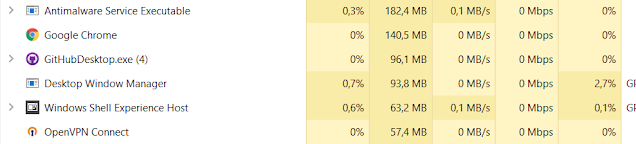
Windows Defender Task Manager Unlike the pro version, the Windows Home edition doesn’t have a group policy editor (gpedit) preinstalled. So it’s a bit tricky to disable the antimalware service executable permanently. Follow these steps to disable Windows defender antivirus on Windows home. 1. Open Windows Security > Virus and Threat Protection > Turn off real-time protection 2. Turn off all the available options like Tamper Protection  3. Download the gpedit-enabler.bat here [ https://gist.github.com/mudiadamz/9a7809dafc13a85a47eccbaa04dcbc8c ] 4. Right-click on the file and Run as an administrator 5. After it’s finished installing, use Windows Key + R 6. When the dialog opens, type gpedit.msc and press enter 7. Navigate to : Computer Configuration > Administrative Templates > Windows Components > Windows Defender Antivirus 8. Navigate to Turn off Windows Defender Antivirus policy, double click on it 9. Then, Turn off windows defender antivirus, select Enabled 10. Cl...

How To Install Vim On Windows The Right Way - Using Chocolatey

Image
Nowadays you can find a lot of very advanced IDEs that are really smart and support robust development of any application. But among pro or advanced level programmers some prefer to use vim as the sole code editor to use, why? Vim is a terminal based text editor that is very popular among programmers. It’s been years for Vim to be around  programmers for their major code editor, who have been proven to work from any scale of application development. It is simple, fast and supports many plugins to work comfortably using only your terminal and computer keyboard. So why bother to choose difficulty over simplicity that is offered by many smart IDEs out there. 1. Install choco package manager Chocolatey can save a lot of time, especially installing software that otherwise would take a solid half an hour to install and set up to get it running. For example installing a media tool like ffmpeg, in choco you can just type choco install ffmpeg. And choco will handle all the install process u...

How To Update Windows 10 Operating System

Image
Windows 10 check for update Updating your OS is a simple task that will probably update it automatically, if your computer feels different or you are just curious to check and update your Windows OS here's a few steps on How to update Windows 10. 1. Press windows key or windows logo on the bottom left of the screen. 2. Click the gear icon or settings. 3. Select menu update and security. 4. Click the button Check for updates. 5. And finally Download and install the new updates. 6. Wait the downloading and installing patches process to finish. 7. If it’s required to restart, then restart your pc, make sure all your working documents are saved before restart your computer. If you are using a laptop, make sure to plugin to source power so your windows update does not break your pc when suddenly your computer is out of power and the updates is only doing it partially. If you have some crucial information on your computer, or some account that you are logged in using your computer it is ...

Everthing on the clouds soon - Google Drive, Onedrive and Windows File Explorer

Image
File Explorer, Google Drive, One Drive As a forever Windows user, I have been using File explorer since the very first time I knew about this OS. It is the default program for browsing files on our computer, so we were familiarised with its feature, and that it’s very convenient to use, work smoothly, and make it very efficient for our daily use. Windows file explorer is a very simple program basically just showing a bunch of files, with its properties like file name, size, file format, date created, date updated, type of the files and many more handy features. Just like most file explorers in any operating system. File explorer actually has many more functionalities behind it, but for me i have never used most of them because file explorer is file explorer, it is just for working with files. Some features in file explorer  for example i have never used is the search box that is on the right top of the windows. I have almost never used it for example because it’s not always showing...

How To Install Vim Plugin On Vim For Windows

Image
Vim nerdtree on Windows 10 As a beginner vim user, even just installing a plugin is already something that confusing, i don’t know why the first time i try to install vim plugin just doesn’t work, even though i believe i have followed the instruction correctly.  So if you are someone like me, struggling to install vim plugin, you can follow this step by step guide. Actually it’s very simple, but because vim users mostly are linux users, it kind of difficult to find a reference of Vim for Windows. Now to install a plugin, let’s start by opening our windows command prompt or there is a new cool windows terminal (if you don’t know about windows terminal, this is a really cool terminal, you can read in my previous article here ). Move to HOME /vimfiles/pack/vendor/start directory using cd command. If the path doesn’t exist, you can manually create it. Note that the HOME is your home directory, on windows, Home directory usually something like C:/Users/your_username . Now clone the sou...

The Ultimate Terminal For Windows, Couples Things To Begin With

Image
Watching star wars from windows terminal Today i just discovered a very cool terminal for Windows OS, it was developed by Microsoft itself, so it’s not gonna be disappointing, and probably a long term project. This very cool and modern terminal, the best terminal console I've ever seen. If you don’t know about this project, Windows terminal is Microsoft project, a better version of terminal that runs on Windows. Here’s the Official website of the terminal ( https://aka.ms/terminal ) from Microsoft. You can look for much detailed information, and how to install it. What to do the with the terminal The first thing i would do is to make the Windows terminal launch in fullscreen mode (maximize mode), which you probably already know, even this simple thing is not possible to do in classic cmd or even powershell. To make windows terminal launch maximize,just put "launchMode": "maximized" , into your settings.json . If you don't know where settings.json is, open W...

Difference Between Windows 10 Home Pro and Windows Enterprise

Image
Windows 10 wallpaper Windows 10 is my favorite OS, why? firstable because it is the most widely used operating system, so for example application or game developers will likely target Windows as their target user because it has big users. So Windows has lots of programs that sometimes other OSes don't. That the main reason, the second reason is, because i've been using Windows as my main Os for very long time, along the way i learn how to customize the Os (not really customizing the core part, because unlike linux, windows is very much commercialized, you get what microsoft give). By customize i mean just deliberately keep programs that only useful for me, remove if they are just consuming my computer resources. So now I have almost full control over my computer. Not to be bragging, but i know many aspects of window OS, like what is services, command lines, etc. I don’t really know that much, but enough for me to stick to the OS. There are three main branches of Windows 10, t...

Popular posts from this blog

Coding On Your Android Phone Using Termux

How to Install Microsoft Office on Your PC: A Step-by-Step Guide

The Hidden Disk Hogs on Windows Developers Keep Ignoring (And How to Move Them to D:)